


Read time: 5 minutes
Repository Link: GitHub
ꄗ CRTMGR
A certificate manager application built in Python + VueJS, containerized with Docker. This is a personal project to support the management of certificates and associated certificate authorities throughout the home-lab. Be gone Chrome certificate warnings!
The application offers a number of features to achieve this:
- A basic authentication mechanism that supports multiple users. This also supports session tokens to reduce the number of requests containing usernames and passwords.
- A user permission system that controls the capabilities each user account can have.
- Ability to create certificate authorities (and certificates) via a programmatic interface.
- Reviewing relationships between parents and child certificates.
- Per-user API key creation to support the retrieval or creation of certificates via basic CLI commands.
- Capability to send audit logs via Syslog for enhanced monitoring.
Note: this application currently has no assurance testing and should only be used for development environments only.
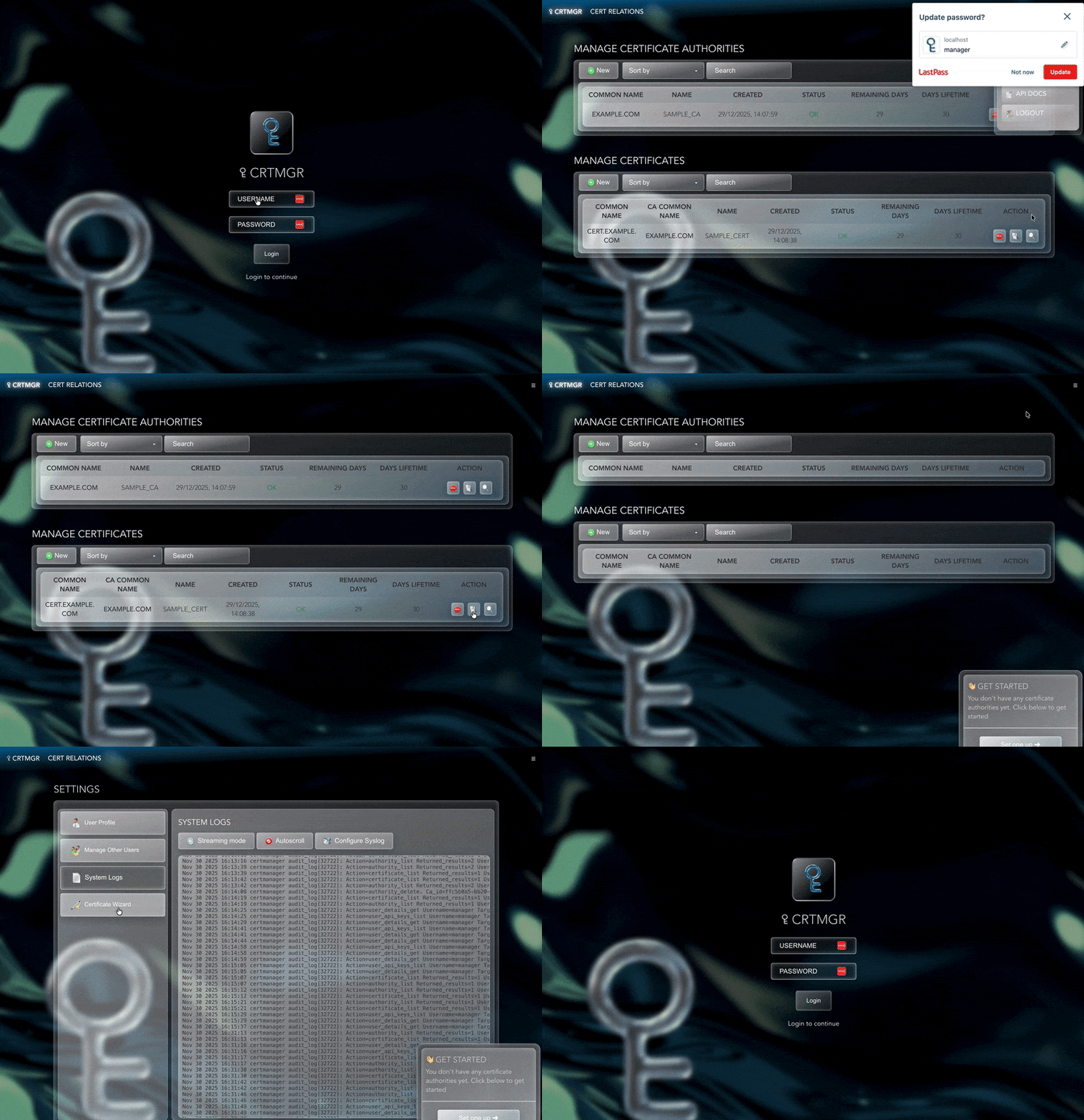
Getting Started
The following core dependencies are required:
- Docker (note that a Linux base system is preferred).
- Docker Compose.
- npm (if opting to manually build the VueJS application).
- pytest (if opting to build from source)
This application uses Docker containers to support operations. Within the root of this repository, run docker compose build to build for the architecture of your system. Once the build is complete, run docker compose up -d.
Running docker ps -a should show the following container names in the running state:
crtmgr_uicrtmgr_api
You should now be able to access the UI at https://localhost:8088, unless these have been manually changes within the docker-compose.yaml file.
Login
On the first run of this application, a randomized password will be created if a database has not been detected. The new password can be found by running docker compose logs. Searching for the phrase create_admin_user will reveal the log line containing the password:
crtmgr_api | [authentication.py:291] [fun:create_admin_user] 12/18/2025_09:13:46 [INFO] The password has been set to: 56bc3d51a4614cf94619ba139758521433b8c5db
You can now use this password with the username manager to proceed with logging into the UI.
It is recommended to change this password, even though the password will be different for each deployment. This can be done by selecting the top right context menu, and selecting ‘settings’.
The manager user is a built-in superuser and should be closely monitored. For this reason, it is best practice to create user accounts for your needs, rather than rely on this user for general operations.
The password can also be manually recovered by running reset_admin_pw.sh in the root of this repository.
API Getting Started
Now that you are logged in, you can create an API key for your user. This can be done from the settings menu. When creating a key, carefully select the relevant permissions; once a key has been created, its permissions cannot be changed. A user may have 8 API keys associated with an account.
The API keys are JWT’s and their information can be viewed by decoding tools. The owner (own) and permissions (roles_at_iat) may be useful in diagnosing permission issues.
Documentation
The API documentation is available at /apidocs and also available in the top right context menu.
The API can easily be accessed via an array of CLI utilities. A common application is to have a system pull the latest copy of its certificate, and a sample of how this is achieved by curl can be seen below:
curl 'http://127.0.0.1:5001/download/certificate/<AUTHORITY ID>/<CERTIFICATE NAME>/?buffer=true' \
  -H 'Authorization: Bearer <JWT API TOKEN>.'
Backup Data
Data can be periodically backed up by taking copies of the persistent_api folder within the root of this repository. If the folder does not exist, it is likely because the container has not yet been started for the first time.
This folder will include all running application configurations, the base database and any associated certificates and authorities.
Perform a Complete Build
To make modifications, these should be made within the python and vue directories and associated component folders.
Unless specifically editing properties of the Docker runtime, do not edit anything within the ct directory, as this may be overwritten during a full build.
If you have made modifications to either the VueJS or Python components of this application, you can run ./build_prod from the root of this directory. This script will also run a series of unit tests to confirm API functionality.
Future Development
This application served a niche use-case for my environment and also was an opportunity to progress full-stack development skills. It is very likely any future developments will be because I need more features.
However, there are a couple of ideas I’d like to see if I could implement in the future:
- MFA for interactive user logins.
- Automatic renewal for child certificates.
- Some implementation that supports ACME challenges and would support something like LetsEncrypt.
Known Issues
- When running in Docker on MacOS, syslog output may not provide an accurate source IP for requests. This is due to Docker running a VM on top of MacOS, and introduces NAT into the network stack.
- When running the API server in development mode (such as manual invocation) setting syslog config will result in a complete exit. This is a design choice, as when running in a Docker container it will restart automatically.
