


Knowledge Required: Familiarity with Sentinel and Azure Arc
Tools required: Linux derivative (this example uses Debian)
There is a high chance that if you’ve setup a Linux server to syslog into Sentinel in the past 12 months, that you’ve installed the Log Analytics Agent to send data to Sentinel. Come August 2024, the log analytics agent (or MMA) will be retired and it is important to start thinking about a migration plan now. More information can be found here. This is a quick blog post on what I learnt while migrating my Sentinel syslog feed from MMA to Azure Monitor Agent.
Microsoft is currently recommending that you use the Azure Monitor Agent (AMA) instead of MMA. The easiest way to install the Azure Monitor Agent is by enrolling servers in Azure Arc, bringing all the advantages of Arc and allowing you to setup logging to a Sentinel workspace with a few clicks. However, not all environments can facilitate having an AMA on everything, and in a Linux environment it is very likely you already have a centralized syslog server. This post will guide how you can monitor syslog by only installing AMA on one central server, moving away from the MMA.
Enrol Servers through Azure Arc
Enrolling servers in Azure Arc is fairly simple. I’m not going to spend too much time talking about this, but the important part to know is that your central syslog server should be enrolled in Azure Arc. To get to Azure Arc enrolled, go to the Azure Portal and add your servers. As of the time of this blog post, enrolling servers in Azure Arc does not cost anything, but I’d still recommend checking against your current license. The main reason for putting this section in is that, if like me, you ran the bash script and it didn’t run due to a certificate error like below, I found a bit of a work around:
error:
Err:4 https://packages.microsoft.com/debian/11/prod bullseye InRelease
  Certificate verification failed: The certificate is NOT trusted. The certificate issuer is unknown.  Could not handshake: Error in the certificate verification. [IP: 104.214.230.139 443]
The workaround is actually quite simple:
- edit
/etc/apt/sources.list.d/microsoft-prod.list - change
httpstohttp - run
sudo apt update - run
sudo apt install azcmagent - run
sudo azcmagent connect --resource-group "$resourceGroup" --tenant-id "$tenantId" --location "$location" --subscription-id "$subscriptionId" --cloud "$cloud" --correlation-id "$correlationId";(Microsoft export the parameters as a shell variable when you first try to run the script and as these are exported, you can re-use them when running this command)
Install AMA
Once your server is enrolled in Azure Arc, find your newly deployed server. Select extensions on the left hand blade. Then select ‘Add’ and you’re going to select ‘Azure Monitor Agent for Linux’. This will take you through a wizard to setup AMA on the server. It will be suggested that you add a DCR Rule (Data Collection Rule) during the AMA installation wizard, however, we’ll do this as a separate step.
Setting up the DCR Rule
Now we need to setup a DCR Rule. From the Azure Portal, select ‘Monitor’. In the left hand blade, under settings, select ‘Data Collection Rules’. Select the create button which will take us through a wizard:
Under the basics tab:
- Give your rule a name
- Assign a subscription and resource group
- Assign a region
- The platform type: select ‘Linux’
- Data Collection Endpoint: select ‘None’
Click next on the wizard. We want to ‘Add Resources’ which will allow us to apply this rule to the server now enrolled in Azure Arc. Once you have selected the server, click next.
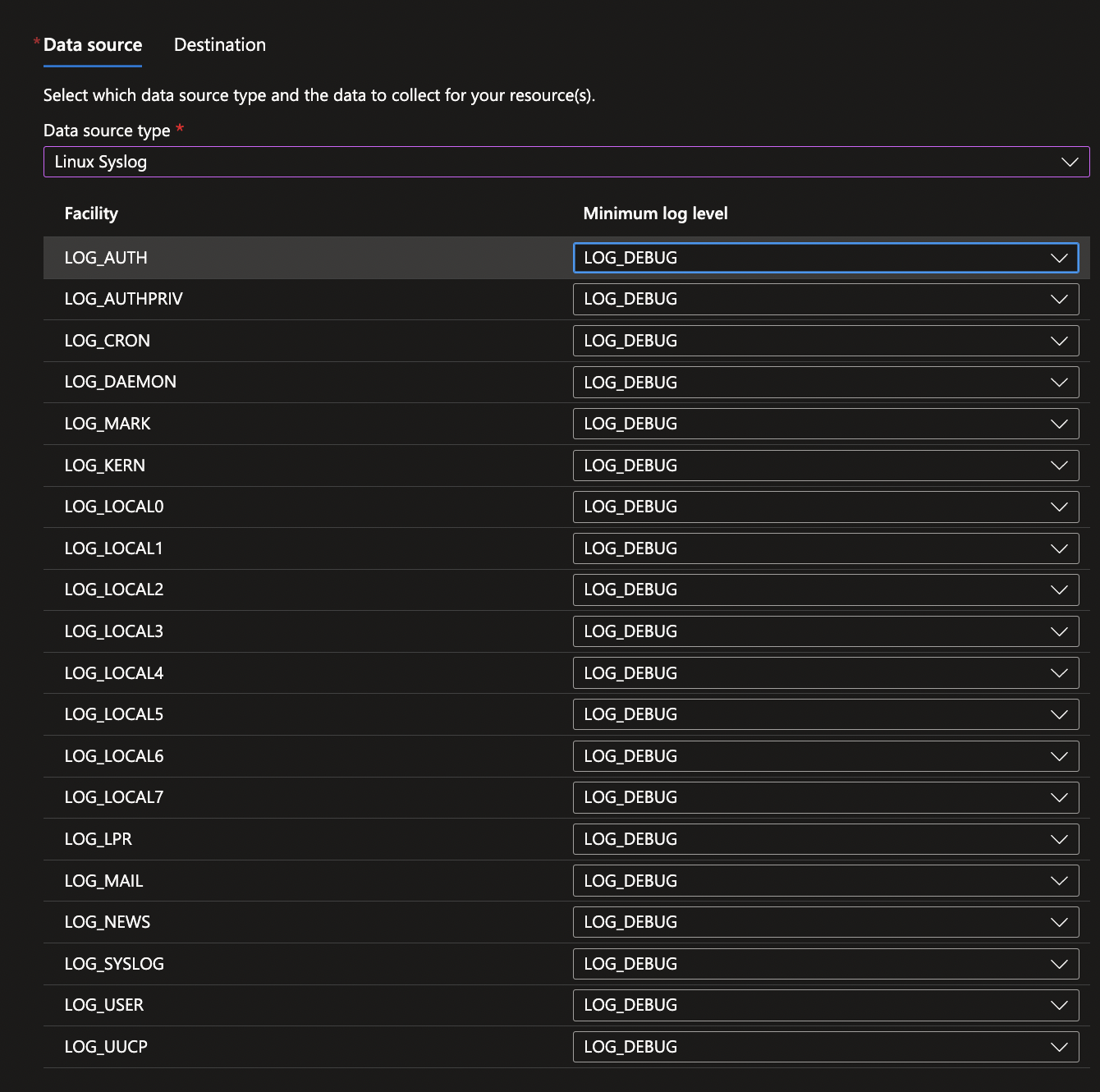
Under the ‘Collect and Deliver’ tab, this is where we will instruct AMA to collect syslog from the Linux Server. Click ‘Add data source’ and under data source, select ‘Linux Syslog’. Here you will be presented an option for what syslog facilities to ingest. At a minimum, you should have ‘auth’ and ‘authpriv’. Using the existing ‘LOG_DEBUG’ log level is fine. As you will see later, these settings are only relative to the syslog of the host with the AMA agent on. Any other syslog devices feeding into this one central server are unaffected by what is selected:
In the destination tab, Select ‘Azure Monitor Logs’ and find your Sentinel Workspace.
The DCR rule is now configured and will now proceed to configure your Syslog server through the Azure Arc connection. For me, this happened within 10 minutes but I would allow up to 30 minutes for this change to take effect.
Allow other syslog devices to feed into Sentinel via this server
The DCR rule is configured to only log the local syslog of where the AMA agent is installed. We will take a quick snoop in /etc/rsyslog.d/10-azuremonitoragent.conf and we can see how syslog is sent to Sentinel:
$OMUxSockSocket /run/azuremonitoragent/default_syslog.socket
template(name="AMA_RSYSLOG_TraditionalForwardFormat" type="string" string="<%PRI%>%TIMESTAMP% %HOSTNAME% %syslogtag%%msg:::sp-if-no-1st-sp%%msg%")
$OMUxSockDefaultTemplate AMA_RSYSLOG_TraditionalForwardFormat
# Forwarding all events through Unix Domain Socket
*.* :omuxsock:
A Linux socket is used to receive syslog and then send it to Sentinel. Previously with the Microsoft Analytics agent, a local listener was configured on @127.0.0.1:25225 so if you see any instances of this, it is likely you will need to replace these, which can be seen shortly.
If you’re using my remote syslog server setup from this blogpost then we just need to make some minor edits to our config file for where the setup and processing of remote syslog is configured. Your mileage may vary on other configurations, however, for me it was as simple as editing/creating a file /etc/rsyslog.d/96-rsyslog-server.conf and giving it the following contents:
# setup an rsyslog server in a custom file so we can manage it easily

# make a remote ruleset for files
# set a remote logging template
$template RemoteLogs,"/var/log/remotesyslogs/%HOSTNAME%/%SYSLOGFACILITY-TEXT%.log"

# Remote Logging
$RuleSet remote
*.* ?RemoteLogs

# FORWARD AMA AGENT
# AMA agent config copied from 10-azuremonitoragent.conf
# Forwarding all events through Unix Domain Socket already configured in AMA file
$OMUxSockSocket /run/azuremonitoragent/default_syslog.socket
template(name="AMA_RSYSLOG_TraditionalForwardFormat" type="string" string="<%PRI%>%TIMESTAMP% %HOSTNAME% %syslogtag%%msg:::sp-if-no-1st-sp%%msg%")
$OMUxSockDefaultTemplate AMA_RSYSLOG_TraditionalForwardFormat
# Forwarding all events through Unix Domain Socket
*.* :omuxsock: # send everything to Sentinel

# enable 514 UDP
$ModLoad imudp
$InputUDPServerBindRuleset remote
$UDPServerRun 514

# enable 514 TCP
$ModLoad imtcp
$InputTCPServerBindRuleset remote
$InputTCPServerRun 514
The above config does the following:
- Configures a template of where to store the logs
- Sends anything (
*.*) to the azuremonitoragent socket - configures the central server to listen on port 514 (UDP + TCP)
With this configured, you should now be able to view your syslog in your Sentinel Workspace. You can test this with a KQL query such as Syslog | sort by TimeGenerated desc | take 30 and this will show your most recent syslog.
Advantages / Disadvantages to this approach:
While you could install an agent on every single Linux device you wished to monitor, many organizations already have some form of syslog centralization in place. This approach also allows you to use bespoke deployments (where you may be unable to install an AMA agent) and gives you granularity of what you log into Sentinel via an Rsyslog config. For example, to limit data volume sent to Sentinel you could edit:
*.* :omuxsock:
and replace with:
auth.=alert;auth.=crit;auth.=debug;auth.=emerg;auth.=err;auth.=info;auth.=notice;auth.=warning :omuxsock:
… only limiting data sent to the ‘auth’ Linux facilities.
However, all the above comes at the cost of needing familiarity with Rsyslog and Linux. Microsoft’s approach of having an AMA agent on all your Linux boxes is likely to give you less management overhead in the long-run. Deploying AMA just once on a central syslog server creates a single point of failure and so availability monitoring should be considered; we’ll talk about that in a future blog post.
Both approaches should be considered, but hopefully this blog post has prompted you to think about migrating away from the Log Analytics Agent before 2024!
EOF
