


Knowledge Required: Moderate
Tools required: Javascript
I recently found myself in the Azure portal where there’s an informative dialog which tells you when a change has been made and then disappears. This led me to wonder how I could write my own version in Javascript. This post is going to be fairly fast paced as it will require you to have basic knowledge of Javascript but don’t worry, you should be able to get away with copy and pasting code listed below and then customizing afterwards.
Spoiler A basic (un-prettied) result:
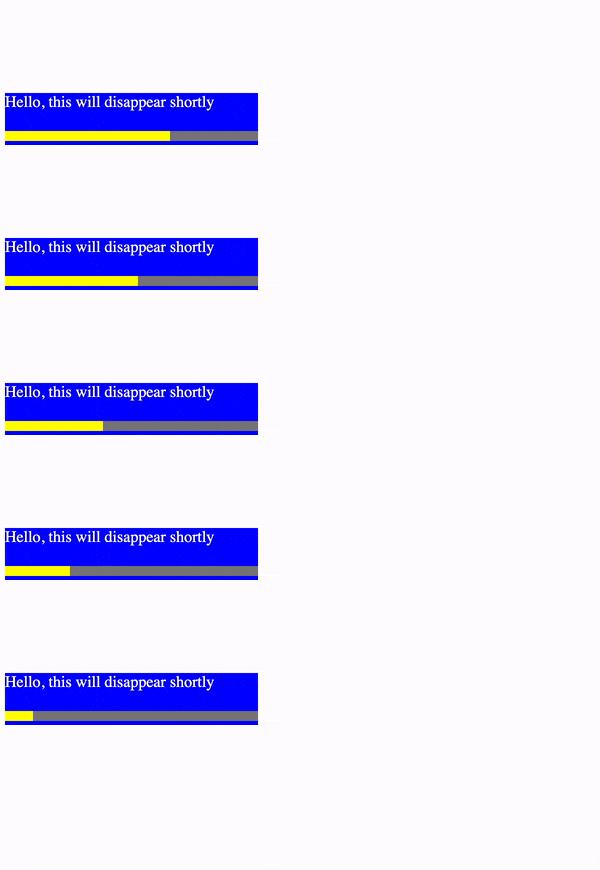
Three basic steps are taken to make this:
- Create an div in HTML where banners like this can be shown in
- Create javascript which programmatically creates a progress bar
- Create a new div containing a message and statusbar and attach it to the HTML document
Javascript
The below lists out the required functions in Javascript. Append each function to your Javascript file
Creating a progress bar:
The end goal of this function is to create a progress bar containing progress blocks which we change as we count down. We also want to be able to control the overall width of the progress bar
function appendProgressBar(maxpx = 100, unique_id = "blah") {

    var per_width = maxpx / 100

    for (count = 0; count < 101; count++) {
        var block = document.createElement("div")

        //give a unique count
        block.setAttribute("id", unique_id + "_perc_" + count)

        block.style.backgroundColor = "yellow"
        block.style.height = "10px"
        block.style.display = "inline-block"

        //block represents 1% of total progress
        block.style.width = per_width + "px"

        //container.append(block)
        document.getElementById(unique_id).append(block)
    }
}
To break this one down:
- The parameter maxpx allows specification of the width for our progress bar in pixels
- The function divides this by 100 to work out how wide a ‘1% block’ of the progress bar should be
- Each block get it’s own numbered ID (so we can reference it as we’re counting down later)
- Some basic formatting is set to make contrast, however the important style is
inline-block, so that each percentage block is displayed inline - The
unique_idpassed as a parameter is the ID for the div that the progress bar will get appended to (i.e, the div where the progress bar will be shown in)
Create the notification div with a message, and make the progress bar count down
This is the more complex Javascript function, where the magic occurs. There is an explanation of how this works at the end.
function displayStatusMessage(message_txt = "", id = "") {
    var display_time_ms = 4000
    var counter_interval = display_time_ms / 100


    var sdiv = document.createElement('div');
    //sdiv.setAttribute("class", "statusbox");
    sdiv.style.backgroundColor = "blue"
    sdiv.setAttribute("id", id);

    var stext = document.createElement('p')
    //how you could set a CSS class to this to make it pretty
    //stext.setAttribute("class", "statusbox")
    stext.innerHTML = message_txt
    stext.style.color = "white"


    var htmlarea = document.getElementById("statusnotifications")
    htmlarea.appendChild(sdiv)


    //add to div bottom up
    sdiv.append(stext)

    appendProgressBar(maxpx = 250, unique_id = id)

    var counter = 101

    var countdown = setInterval(function () {
        counter = counter - 1

        var elem = document.getElementById(id + "_perc_" + counter)

        if (elem !== null) {
            elem.style.backgroundColor = "grey"
        }

        if (counter == 1) {
            //remove element and countdown now we're done
            document.getElementById(id).remove()
            clearInterval(countdown)
        }

    }, counter_interval)

}
Useful variables here:
message_txt= A parameter for the message text you wish to showid= A unique ID of your choosing for a new div which will contain your message and a status bardisplay_time_mssets how long the div should show for. This number gets divided by 100, giving Javascript a time to wait for before making a 1% increment on the progress bar
How does it work?
- A new
<div>element is created - A new
<p>is created containing the message text and appended to the new div - The
appendProgressBarfunction appends a countdown progress bar to the new div - The new div is then appended to a div already specified in the HTML file with the id
statusnotifications
One we’ve added the elemments to the screen, Javascripts setInterval is used which allows us to loop; run code, then sleep a set amount of time. Each time the setInterval loops:
- We visually take away 1% away from the progress bar by coloring it HTML
grey - If the count is equal to 100% (our progress bar is empty) we break out of the
setIntervalloop and destroy the new div element containing whatever message we displayed to screen.
Call our function
Finally at the bottom of the Javascript file after the above functions
var new_div_id = (Math.random() + 1).toString(36).substring(7);
displayStatusMessage(message_txt = "Hello, this will disappear shortly", id = new_div_id)
Note: The above example includes a randomly generated divID which is a good way to make each notification unique in HTML and means that if you’re displaying multiple status messages, they will not interfere with eachother. The functions are built in such a way where you can have multiple status notifications displayed at the same time!
HTML
HTML must at least have the following
- A div with an ID of
statusnotifications - Our imported Javascript file
The below example also applies a style of statusnotifications allowing it to appear in the bottom left
<!doctype html>

<html lang="en">

<head>
    <meta charset="utf-8">
    <meta name="viewport" content="width=device-width, initial-scale=1">
    <title>Smart Screen</title>
    <link rel="stylesheet" href="/css/index.css">


</head>

<body id="body">
    <h1>This page is an example of how to create notifications which expire with a coundown timer</h1>
<div id="statusnotifications" style="position: fixed; bottom: 0; left:0; margin-left:5px "></div>
<script src="myjavascript.js"></script>
</body>
Conclusion
If you’ve followed the steps and you have a working progress bar, you’re now ready to customize it. Have a look at the comments in the displayStatusMessage function for how you could do this!
EOF
