


Knowledge Required: Strong Sentinel Knowledge
Tools required: Microsoft Sentinel, Microsoft Azure Portal; ideally with GA access
Introduction
Investigating incidents take time. This is because an analyst has to gather a reasonable about of information before they can make an informed decision on if an alert is actually a threat. This begs the question: if an analyst does the same series of steps for every investigation, how can we make the workflow more efficient? This is something Microsoft wants you to do with Automated Responses.
So lets take the following scenario:
Microsoft will raise Azure AD Identity Protection Alerts within Sentinel but commonly will only include the Azure AD UserID and not the full user principal name. Due to Azure AD Identity protection being an integration, instead of an underlying Analytics Rule, there is no KQL to modify, thus no scope to do enrichment at a rule level. What we do know is that Identity Protection raises alerts from sign in behavior, therefore, the analyst’s typical workflow would be to look for the user principal name (UPN) matching the Azure AD User ID within the sign in logs.
Such a query could be used:
union SigninLogs, AADNonInteractiveUserSignInLogs | where UserId has 'myaaduserid123' | project UserPrincipalName | distinct UserPrincipalName
Now we know how to solve the problem, we just need to automate it.
This is how we’re going to do it:
For each incident, fire an automated response to run a playbook and do the following:
- Take the entities from an incident
- See if the entity has the field
aadUserID(the Azure Active Directory User ID) - Run the above KQL query, but replacing the UserId
- Post the results to the comment of an incident, so the analyst can quickly see the full account name
Create the playbook
We need to create a playbook with an incident trigger. This will give us all the incident information, such as Entity information, at the beginning of our playbook. Fortunately, Sentinel makes this easy for us in the automation tab:
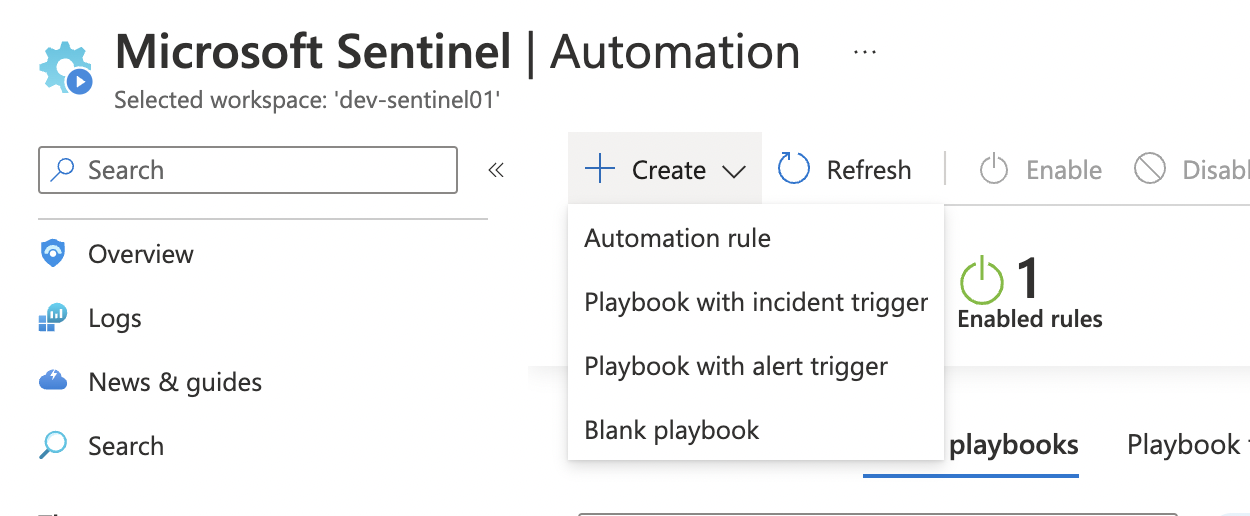
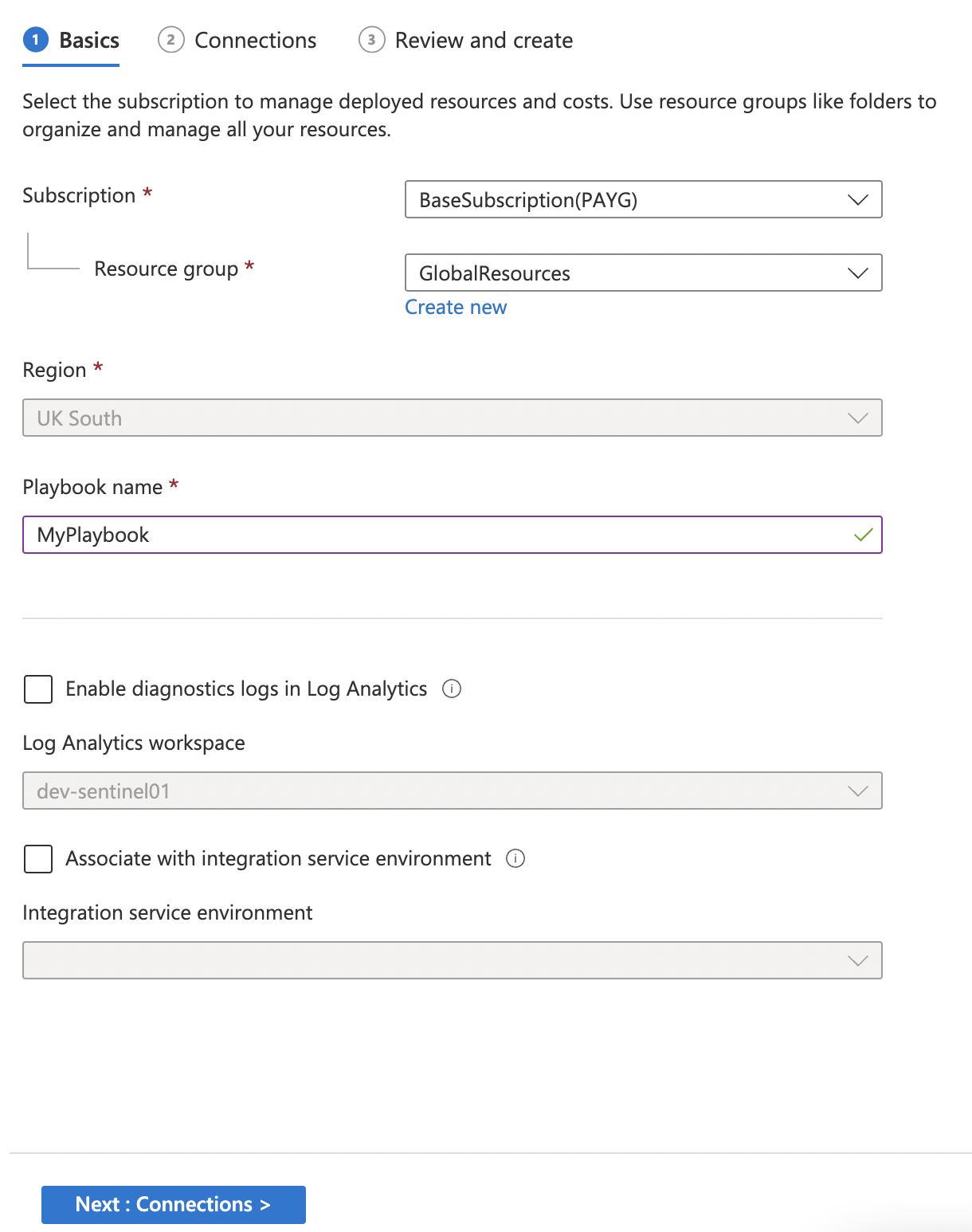
Give you playbook a unique name and hit next:
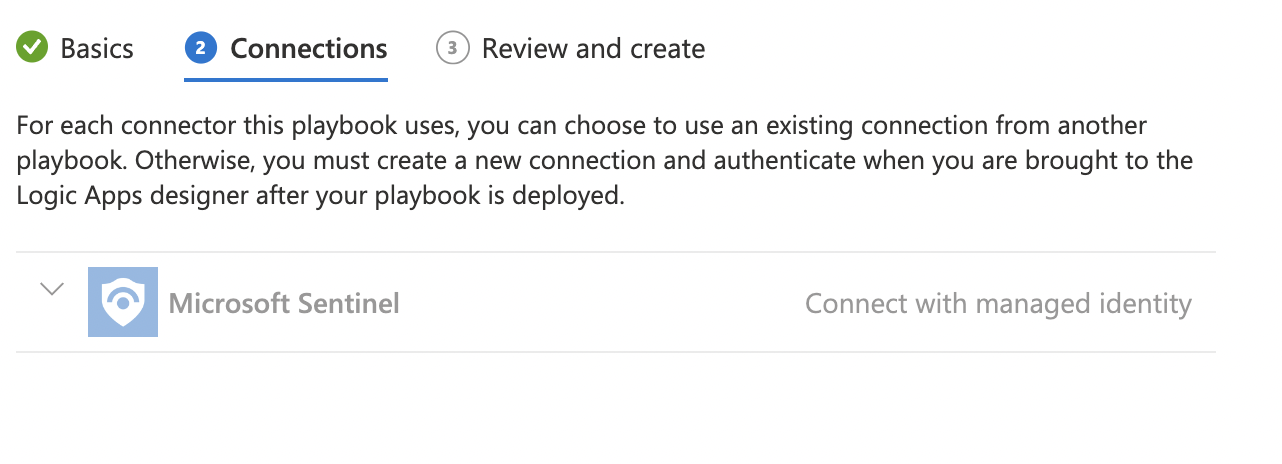
If you haven’t already, setup the connection to Sentinel as a managed identity
Review and create the playbook.
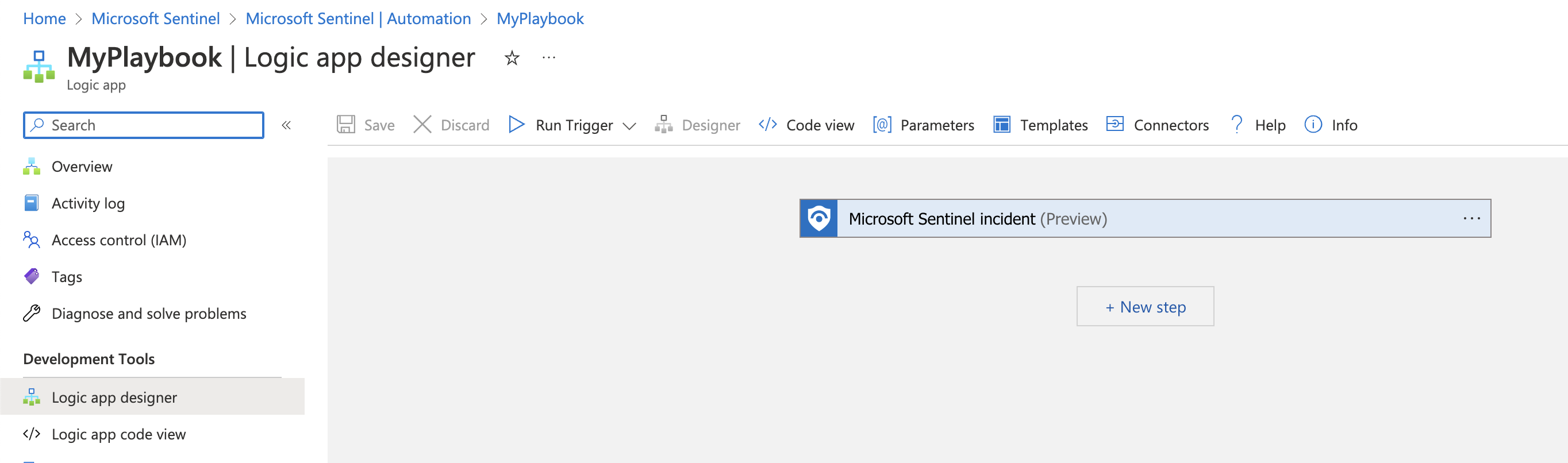
We should now be presented with a blank playbook with an incident trigger:
Since we know we want to query an Azure AD User ID, let’s setup a variable to store this. The default value should be null. Add a new step and click Variables > Initialize Variable
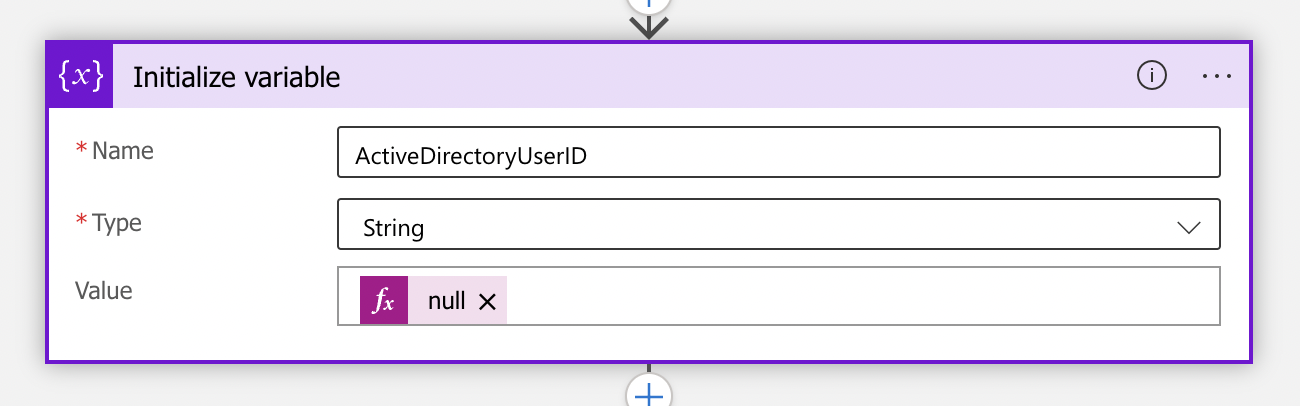
To set the default value to null, click within the ‘Value’ textbox, select the ‘Expression’ tab. In the expression textbox, start typing ’null’ and you will see the option presented.
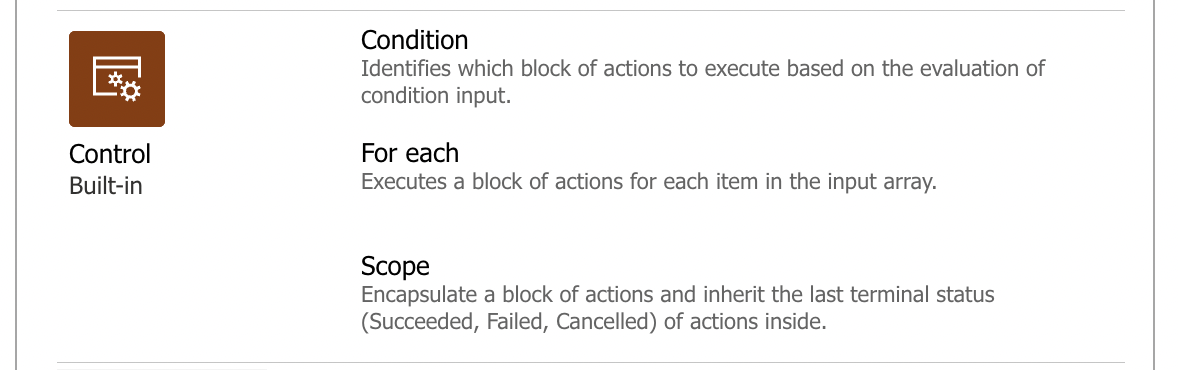
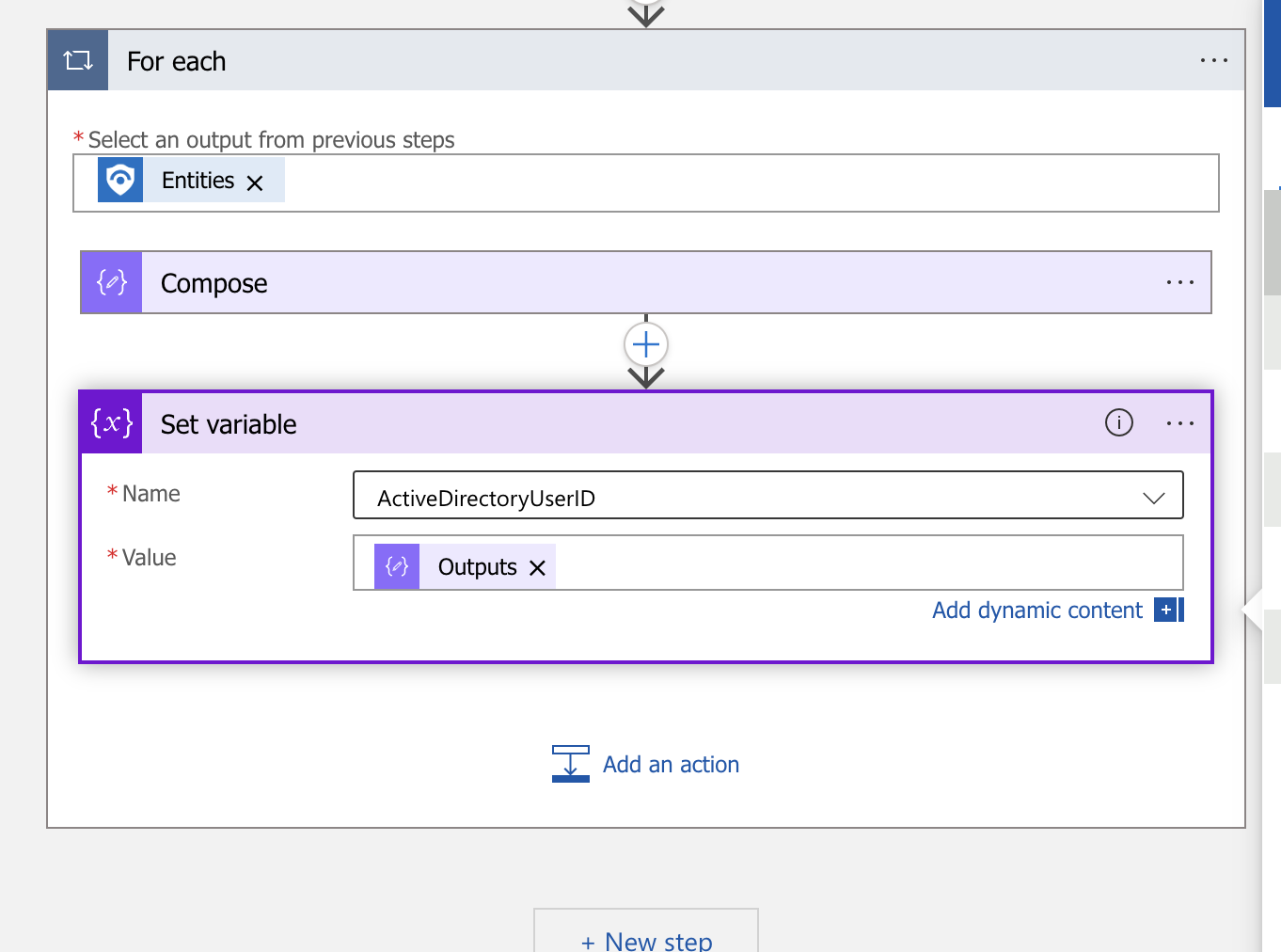
A Sentinel Incident can have multiple entities, so we need to loop through each one. We can use the ‘Control’ section to create a For each action that will iterate through all the entities in the incident:
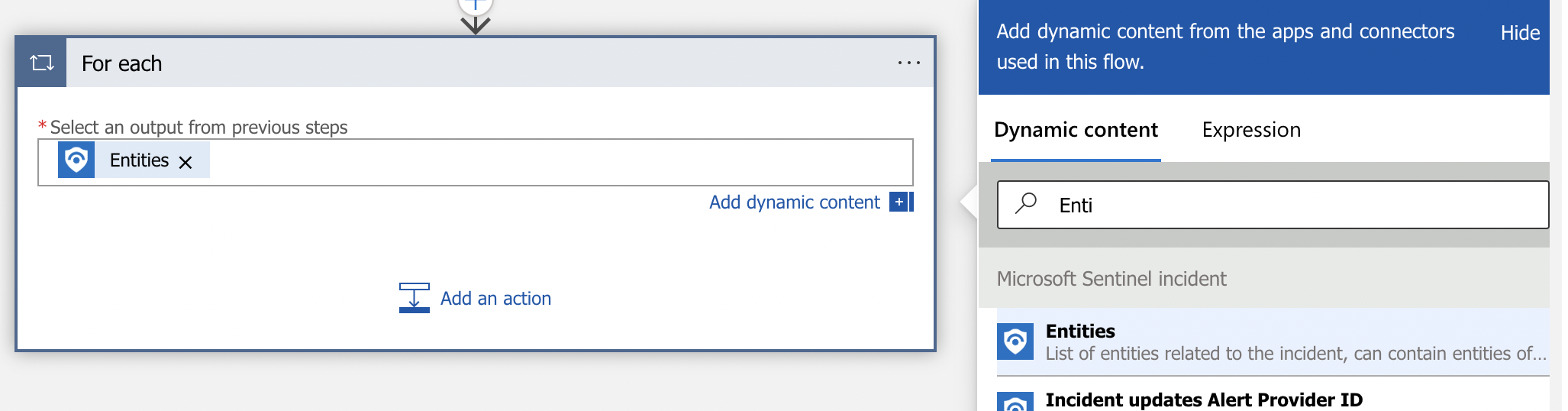
Create a For each: Under ‘Select Option From a Previous Step’ we know we’ll use the Incident Entities. This will be under the Dynamic Content section because it will change per Sentinel Incident:
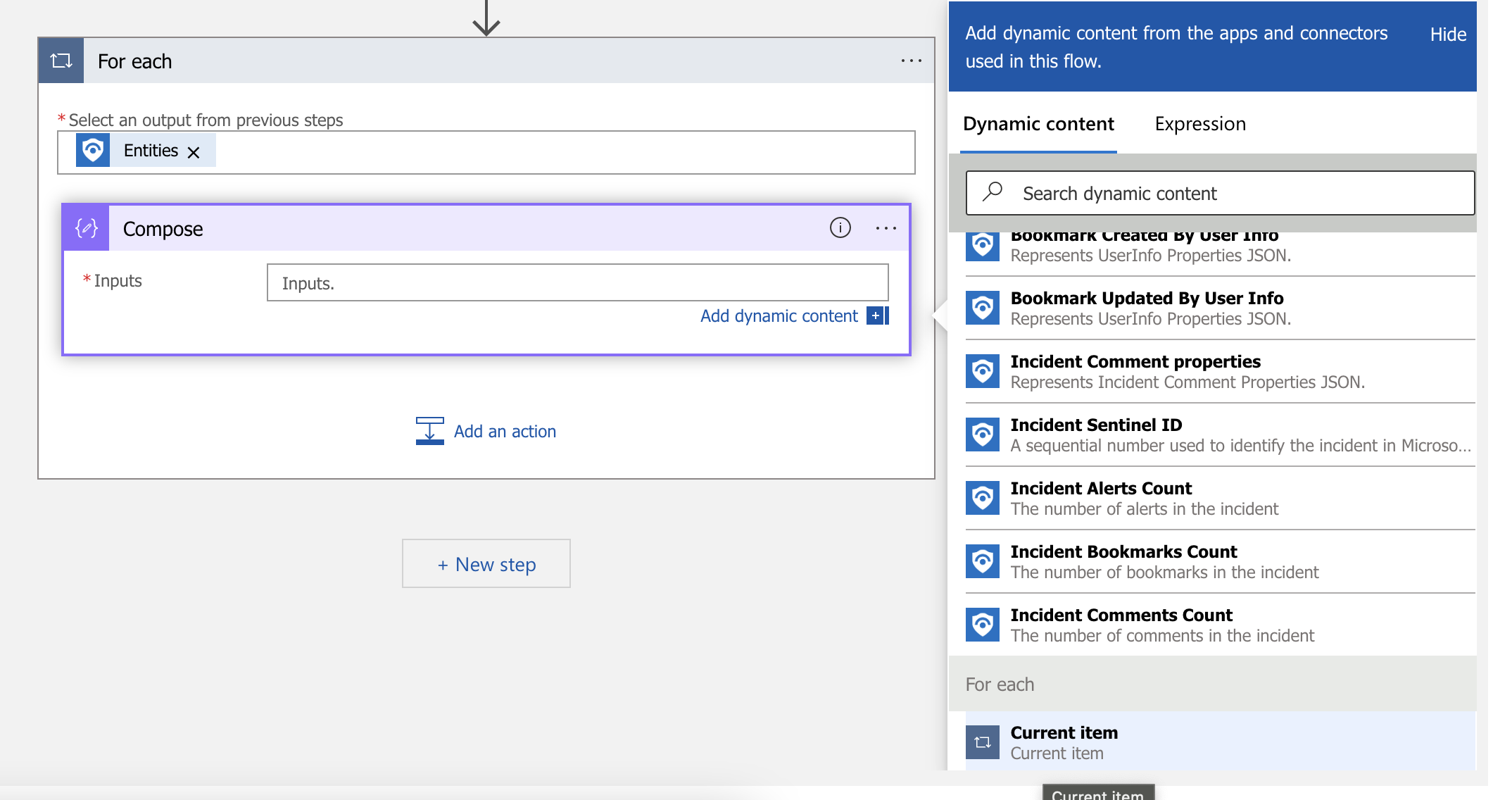
Next, add a new step under Data Operations > Compose. For the inputs, select ‘Current Item’ at the bottom of our Dynamic Content Section.
Now we will set the variable value that was initialized earlier in the playbook. This is under the ‘Variables - Built in’ section, similar to how we initialized a variable earlier. Set the value to the compose output.
This will also be under the Dynamic section:
At this point, we need to do a little bit of the backend code for the logic app. This can be done by selecting Logic App Code View in the left hand blade. We’re going to change the following lines:
                    "Set_variable": {
                        "inputs": {
                            "name": "ActiveDirectoryUserID",
                            "value": "@{outputs('Compose')}"
                        },
                        "runAfter": {
                            "Compose": [
                                "Succeeded"
                            ]
                        },
                        "type": "SetVariable"
                    }
to:
                    "Set_variable": {
                        "inputs": {
                            "name": "ActiveDirectoryUserID",
                            "value": "@{outputs('Compose')?['properties']['aadUserId']}"
                        },
                        "runAfter": {
                            "Compose": [
                                "Succeeded"
                            ]
                        },
                        "type": "SetVariable"
                    }
Note, that at this point, it was easier for us to switch to the code view to make this change. We manually specify a dictionary key from the Entities output which is under ['properties']['aadUserId'].
This was derived by running the playbook a few times and reviewing the JSON output from the Sentinel Incident. I’m saving you the trial and error of finding where the aadUserID is stored!
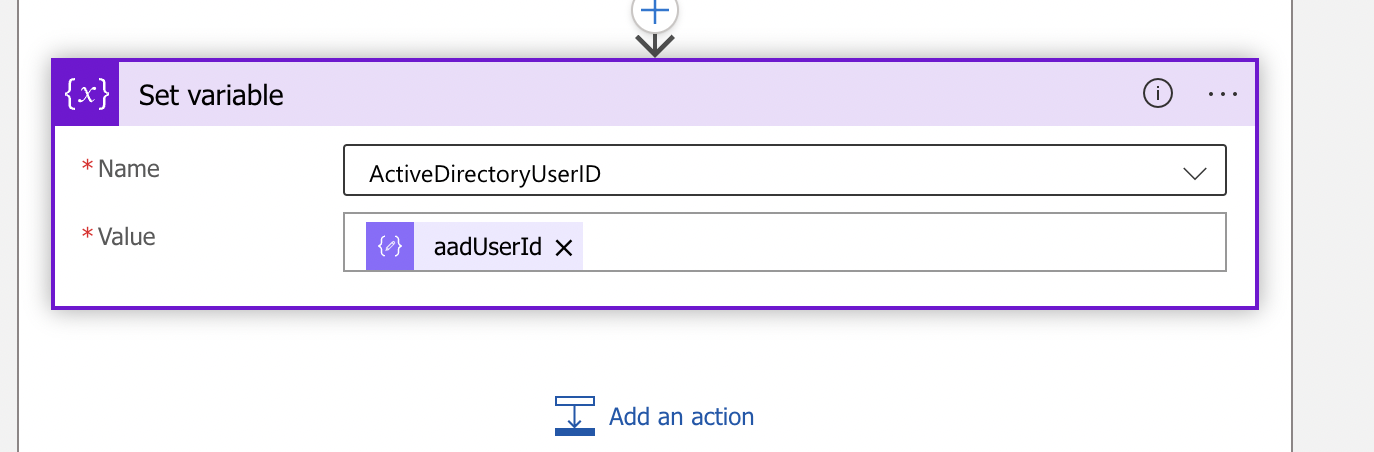
Switching back to the the Logic app designer view in the left blade, we can see that the variable will now be set to aadUserId.
Next, we will now run the query mentioned at the top of this post, allowing us to search a user principal name from an ID. It will need to account for our variable containing the aadUserId. The step we want is called Run Query and List Results and is under the Azure Monitor Logs section.
You will get prompted to select which Sentinel Workspace to run the query on. Providing you have the correct permissions to view the Sentinel Workspace, clicking in the drop down boxes should provide you a list of pre-populated options.
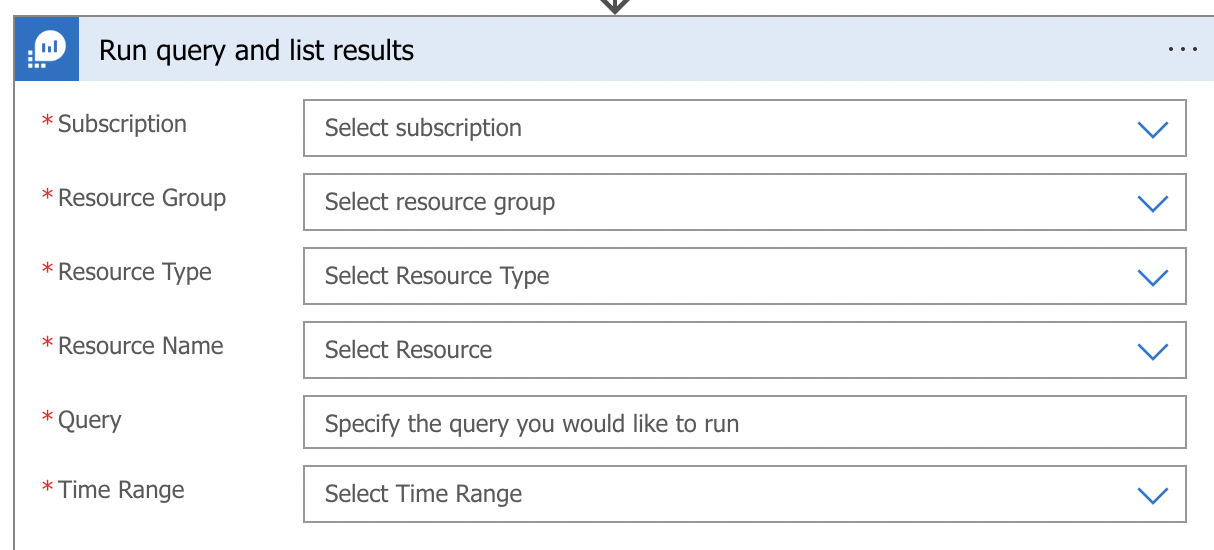 If you do not get any drop down options, or do not know the subscription and resource group, ask your Azure administrator.
Once you’ve got to inputting the query, enter the following
union SigninLogs, AADNonInteractiveUserSignInLogs | where UserId has '<HERE>' | project UserPrincipalName | distinct UserPrincipalName
Once pasted, select and highlight <HERE>. Delete it. Without moving your cursor from where you have selected in the Query field, select ActiveDirectoryUserID from the right hand side Dynamic column:
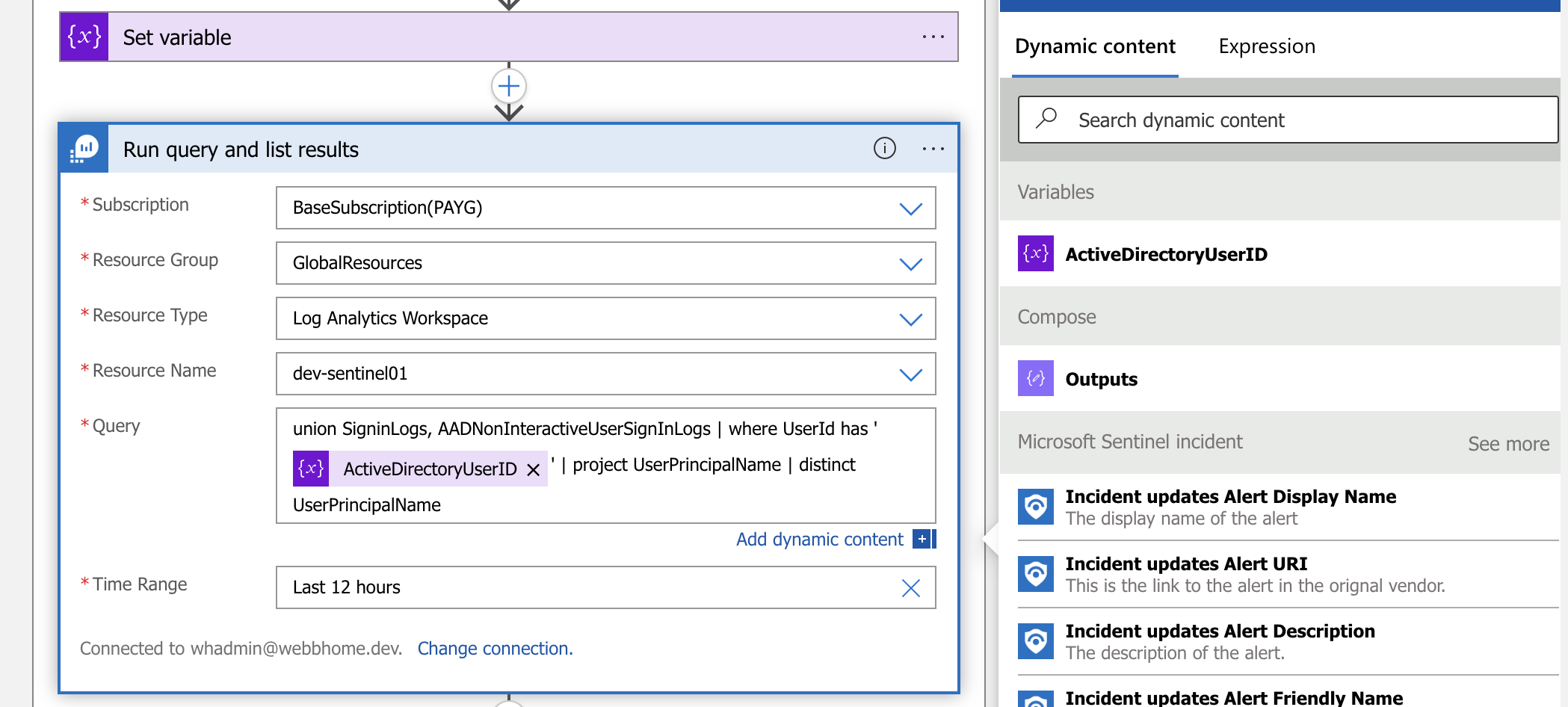
For the time range, select the previous 12 hours. We will assume that there will have been at least one sign in against the userID in the past 12 hours.
Next, we simply post our results back to the incident comments using dynamic fields. This will be done under ‘Add comment to Incident’
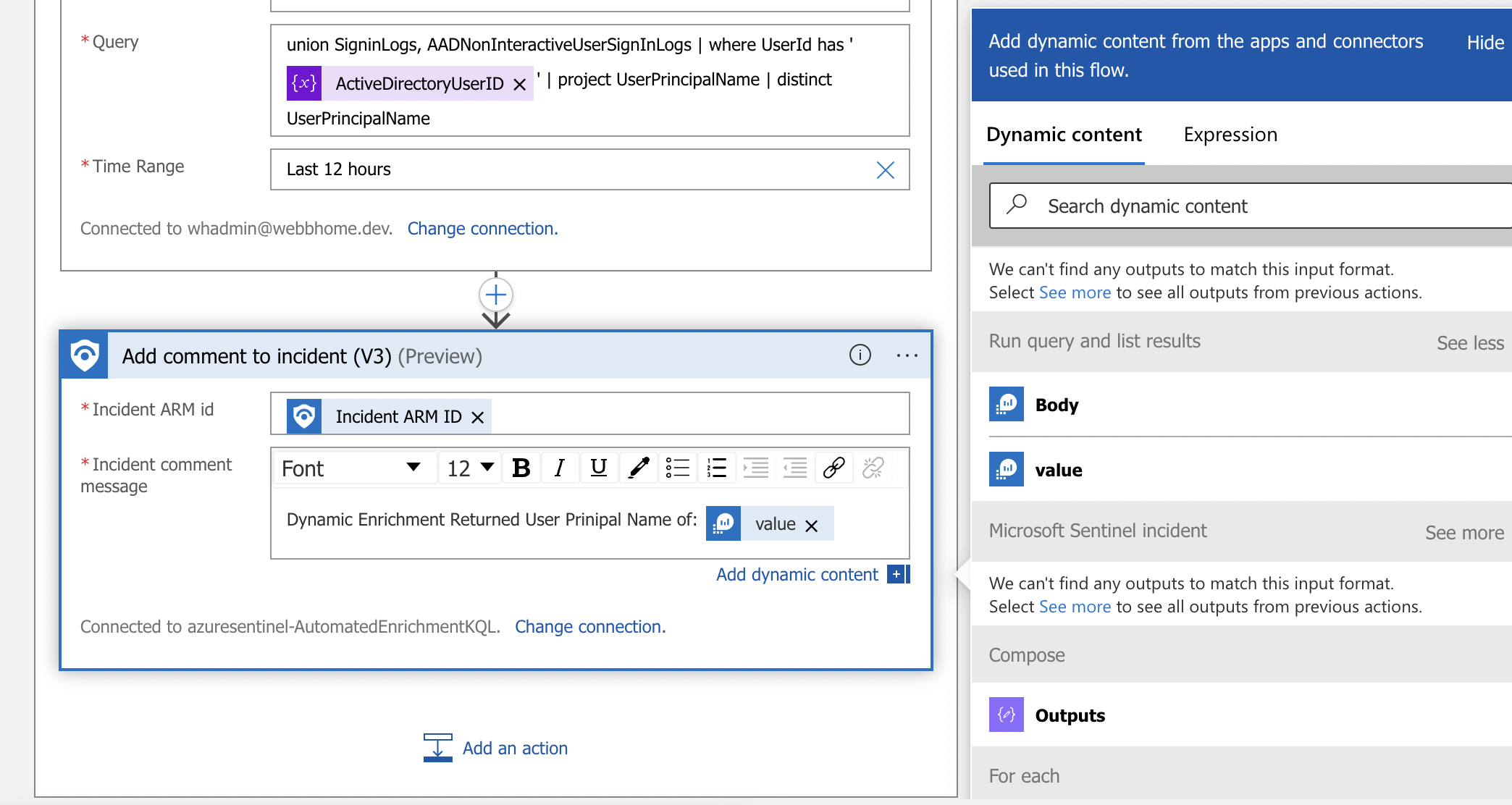 The incident ARM ID can be filled in from the Dynamic column, as shown above.
For the incident message, if you are presented with the error: We can't find any outputs to match this input format. Select See more to see all outputs from previous actions., click See more and the option for value should appear.
Give the permissions for this playbook to modify Sentinel incidents:
Our playbook in it’s current state won’t work. This is because when a playbook is configured, Sentinel creates a new managed identity for the playbook in Azure, but does not give it permissions to to write comments. To achieve this, we are going to give this playbook the role of Sentinel Contributor. This needs to be done at the subscription level for this to work.
- Go to
portal.azure.com - Select the subscription hosting the Sentinel workspace
- Select the
Access Control (IAM)section in the left blade - Select
Add - Select
Add Role Assignment - Select
Microsoft Sentinel Contributor - Select
Next - Under Assign Access to select the
Managed Identityoption - Under
Select members, selectLogic appunder the Managed Identity Option: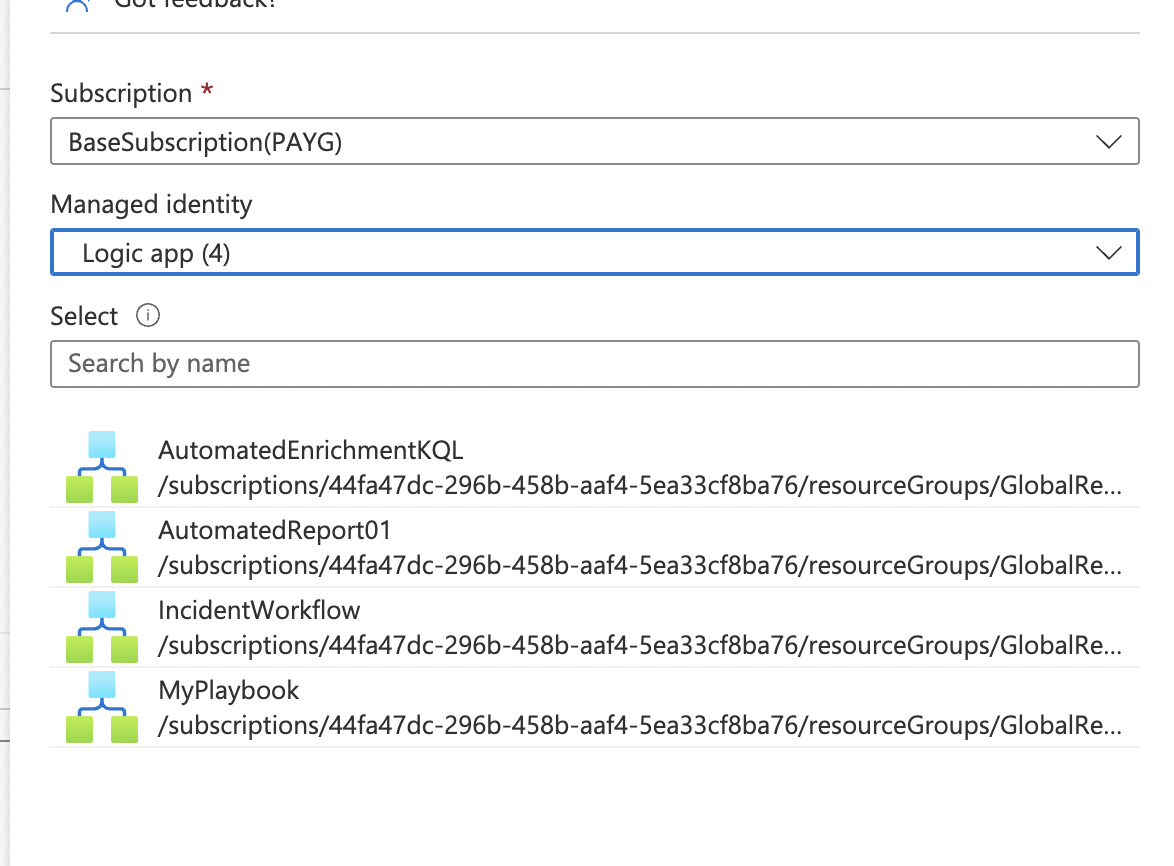
- Click on the playbook you just created, which will add it to a list of identities to assign this role to
- Select
Nextand process to go ahead and assign the role
Microsoft also provides useful documentation for completing the above steps of adding role assignments here.
The underlying work is complete! This should be a good enough playbook to get what we want.
Test the playbook:
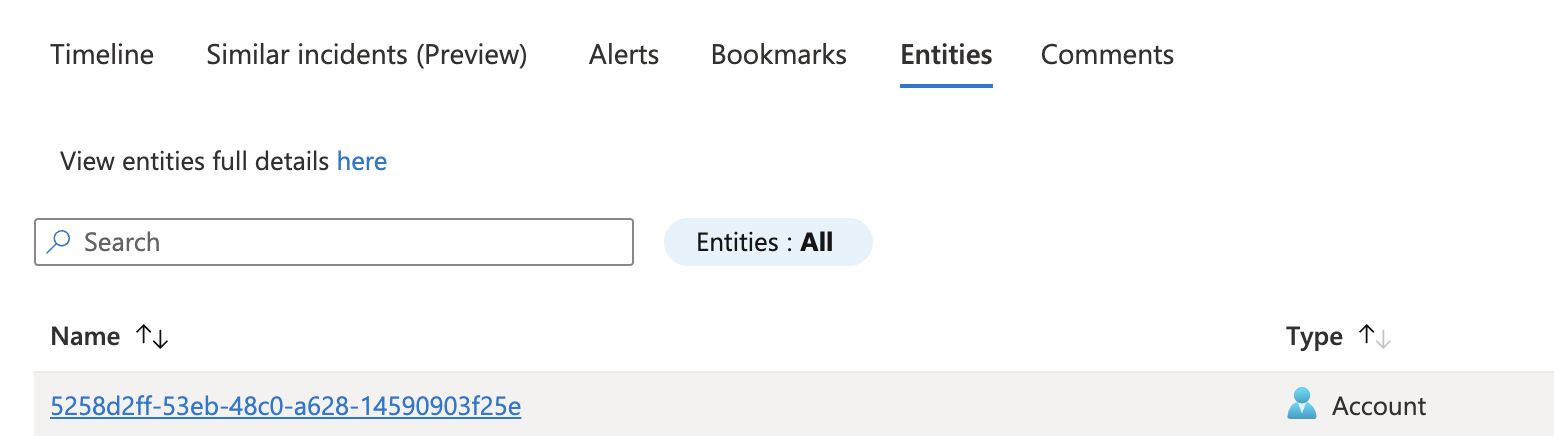
Now we must find a sample incident in Sentinel to test against. Quickly searching, the prime candidate is found. We only have an AzureAD ID in the entities:
Under actions in, select ‘Run Playbook’:
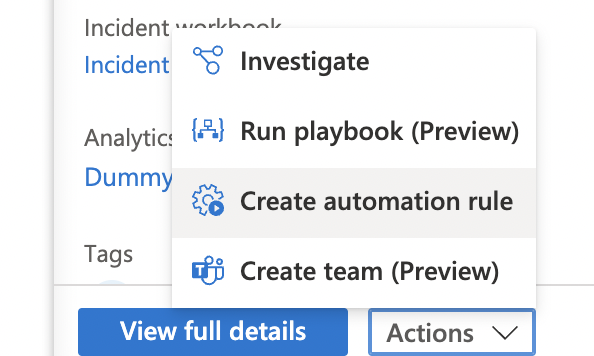
You should be able to select the playbook you’ve just created.
Upon running the playbook, we can see a new comment has been created for the incident!

Initiating the playbook automatically:
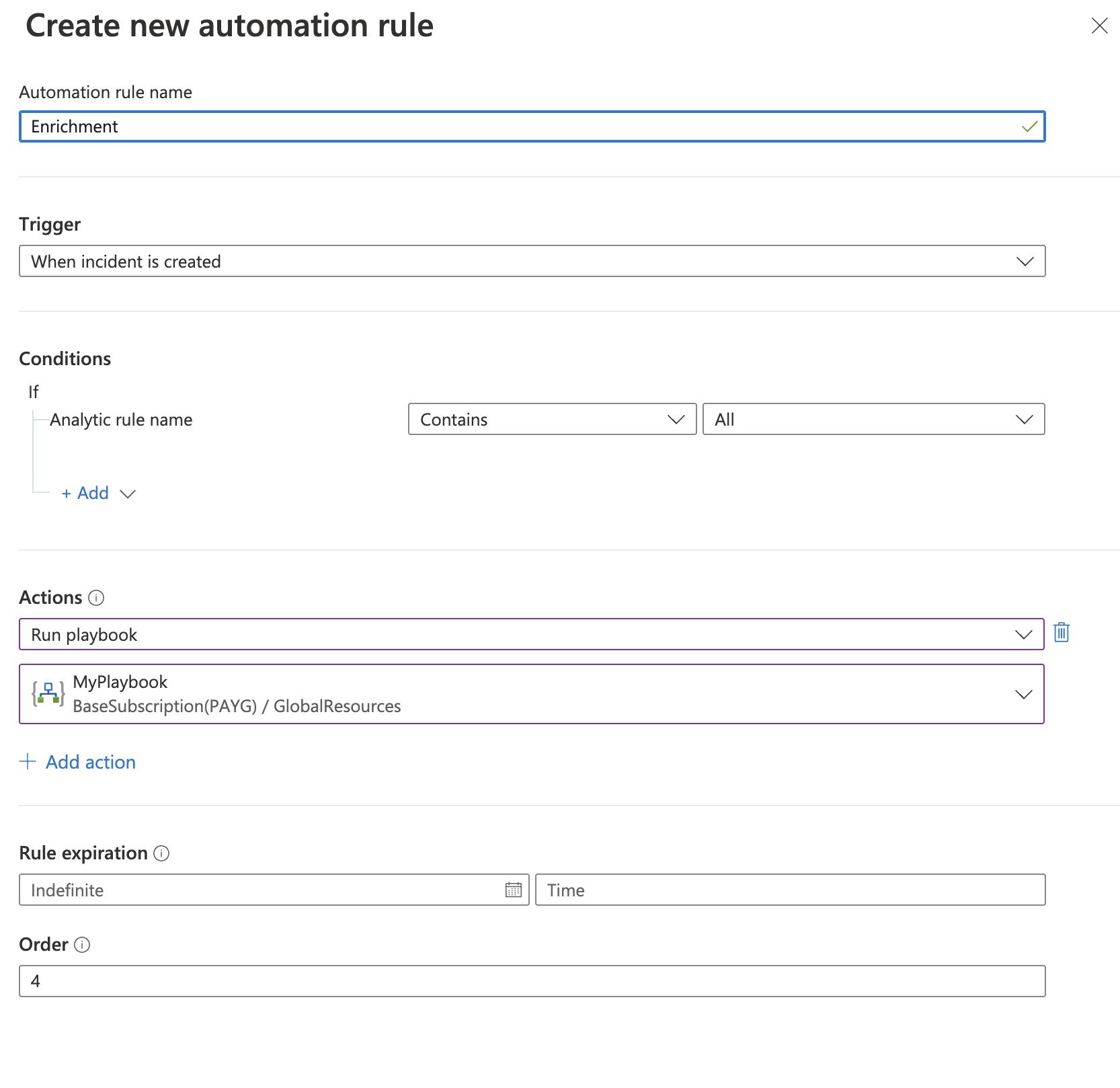
Currently, we’ve only run this manually but we want this enrichment to occur for all incidents. We can setup an automated response for this, which is done under the automation tab in the left hand blade. Similar to how we created the workbook, create an Automation Rule. For actions, we can select Run Playbook. The dropdown should present you with the playbook that was just created:
Conclusion
Any future incidents containing an Azure AD UserID will be enriched and displayed in the comments. This happens almost immediately. By now, you’ve written a playbook and an automated response rule. By using this scenario as a basic example, we’ve simplified the process of enrichment, reducing the chance of human error and saving the analyst valuable time. There are plenty of other opportunities for enrichments from Sentinel incidents and hopefully this tutorial serves the basis for you to build automated processes that make daily operations easier.
EOF
