


Knowledge Required: Familiarity with Elasticsearch ESQL, General Threat Knowledge
Impacket is a suite of tools that enables threat actors to remotely execute commands. Written in Python, it crafts network packets that allow interaction with popular Windows network protocols found in corporate environments, like SMB and WMI. Threat intelligence evidences continuous usage of the tool by threat actors, providing an execution technique and has been observed deploying ransomware; Impacket actually reached the 2nd most prevalent threat in Red Canary’s 2023 threat report. Threat actors likely favour it because Impacket enables programmatic interaction with devices and easy integration with other items in their nefarious toolkit.
This post will focus on one popular method within Impacket: smbexec. As implied by the name, it leverages SMB admin shares. Given the reliance of SMB connectivity for core Active Directory operation and the fact many admin shares are enabled by default, the chances of a threat actor finding a host they can run this against is fairly high.
Impacket execution by this method will create it’s own service to run under (a potentially evasive technique) by hovering under the guise of services.exe as a parent process. However, service creation should already be something under the SOC microscope, today’s post will focus on a different approach.
Instead, we’ll look at common characteristics of process activity when something does execute via Impacket.
To the … s̶a̶l̶o̶n̶ … lab
Recently, I’ve been playing around a lot more with the Elastic Security stack. It’s got a flexible rule engine that supports multiple ways to detect threats and today’s post will make use of the Elastic Defend Agent, plus the ESQL language to search for suspicious behaviours. (For wider organisations who can benefit from additional licensing, it also means that response actions can be executed on the agent as a response to this alert, such as isolating the impacted host. Given the nature of this threat, such configuration is recommended!)
Testing Impacket is relatively simple. On the victim machine, we’re going to enable the administrator account and set a password. We use the administrator account, because there are restrictions on non-domain joined computers, limiting which accounts are permitted access to administrative shares. To enable and set the password for the built-in administrator we run 2 commands: ’net user administrator /active:yes’ and ’net user administrator Password123'.
Go time
On our threat actor machine running Kali, the Impacket toolset is already installed and we can run ‘impacket-smbexec administrator@<victim_ip>’, enter our super secure password of ‘Password123’ … landing us at something that looks like a shell:

It’s not quite a full shell, but this shouldn’t deter from underestimating it’s capability. It can run the majority of basic Windows shell commands, including executing already dropped files. Also, I cannot understate how trivial it is to get to this point with a valid set of credentials.
Each time we run something via the Impacket shell, if we look at our Elastic Defend process telemetry, we start to observe a distinctive pattern that provides some indication of what’s happening under the hood. - Note we can find these by starting with a generic search for commands we know are being run in the Impacket shell -
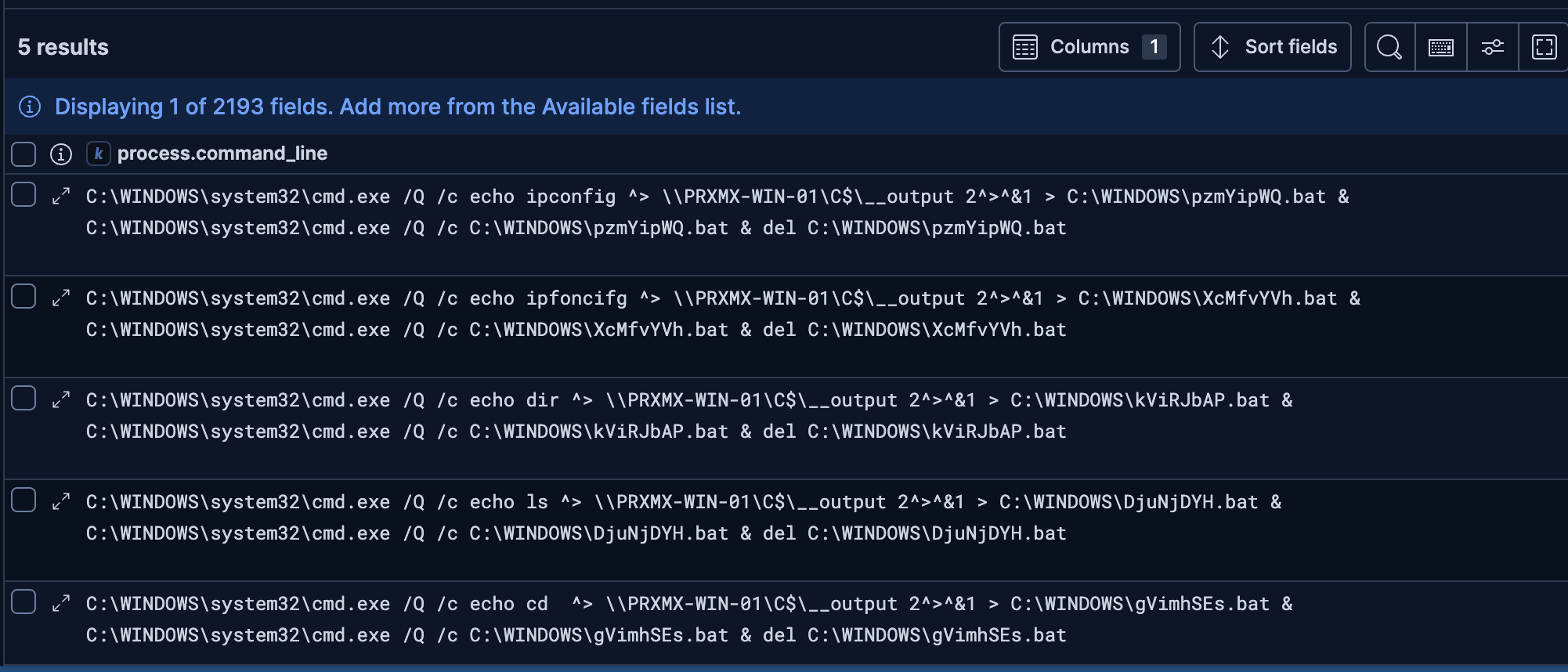
- Every command starts with the
/Qflag to prevent a new command window spawning - After the
/Qflag, the/cflag follows and indicates what I ran from the threat actor machine. - we will not say anything about ‘ipfoncifg’ typo 🙃 - - We observe that the output for whatever was executed is redirected to an outputfile under an admin share (\C$__ouput) and we’ll expand on that shortly.
- Once done, the .bat script responsible for executing our original command gets removed for completeness, likely to remove indication of the commands being run remotely.
Detection engineers rejoice, because that useful data we’ve discussed appears all in one field: ‘process.command_line’. We just need to craft some logic that looks for all of these key characteristics. Before we do, lets talk about some differences I’ve also observed in the wild that our detection must account for:
- It is not always the ‘C$’ admin share, I’ve also seen ‘$ADMIN’ being used and I imagine that Impacket will leverage any share directing to the root of the OS drive.
- The output file ‘__ouput’ in this case is not always named this. Sometimes it’s represented as an epoch timestamp, which actually provides a better indication into when the command has been run.
- Sometimes the delete command is not always present
Building the logic
If you’re familiar with my posts, you’ll know I’m a Kusto Query Language fan boy. Fortunately, Elastic’s ES|QL language is very similar in style. Piecing all the indicators from above together, we end out with a succinct query like below:
FROM logs-* metadata _id, _version, _index
| WHERE process.name == "cmd.exe"
| WHERE process.command_line LIKE "*/Q /c*" // common combination of args supplied to cmd.exe for impacket
| where process.command_line LIKE """*\\__*""" // matches the output filename (__output or __<epoch>)
| WHERE process.command_line LIKE """*$\\*""" // makes use of an ADMIN share (catches string $\<filepath>)
| WHERE process.command_line LIKE """* > *""" // catch file redirection part of Impacket
| WHERE process.Ext.session_info.authentication_package == "NTLM"
Go forth and hunt!
But don’t stop there. Instead of just relying on detective capabilities, surely there’s something a bit more proactive?
One of the reasons that organisations fall victim to Impacket via SMB is due to the fact the Windows helpfully enables these admin shares by default. Some applications rely on the use of admin shares (looking at you psexec) but given the attack surface this presents, it’s worth working out if you have an actual impact which is commonly achieved through a period of trial and error. If you’re feeling confident, you can go ahead and disable all administrative shares via GPO. This can be achieved by creating a delete action under ‘Computer Configuration -> Preferences -> Windows Settings -> Network Shares’ and selecting ‘Delete all administrative drive-letter shares.’
EOF
