


Knowledge Required: Moderate
Tools required: Elasticsearch, Kibana, curl
Before you can search documents in Kibana, there are a couple of things you’ll need to get going. One of those is telling Kibana which data it should run your search against. As a quick recap, Kibana requires a backend collection of data to search and this is done through Elasticsearch. Architecturally, this usually looks something like:
[ElasticSearch:9200] <-----> [Kibana:5601]
Why do this?
In applications where you or the user ends up on a Kibana search page, make sure you as developer set up search index patterns first. If none are available, the user will be prompted to set them up:
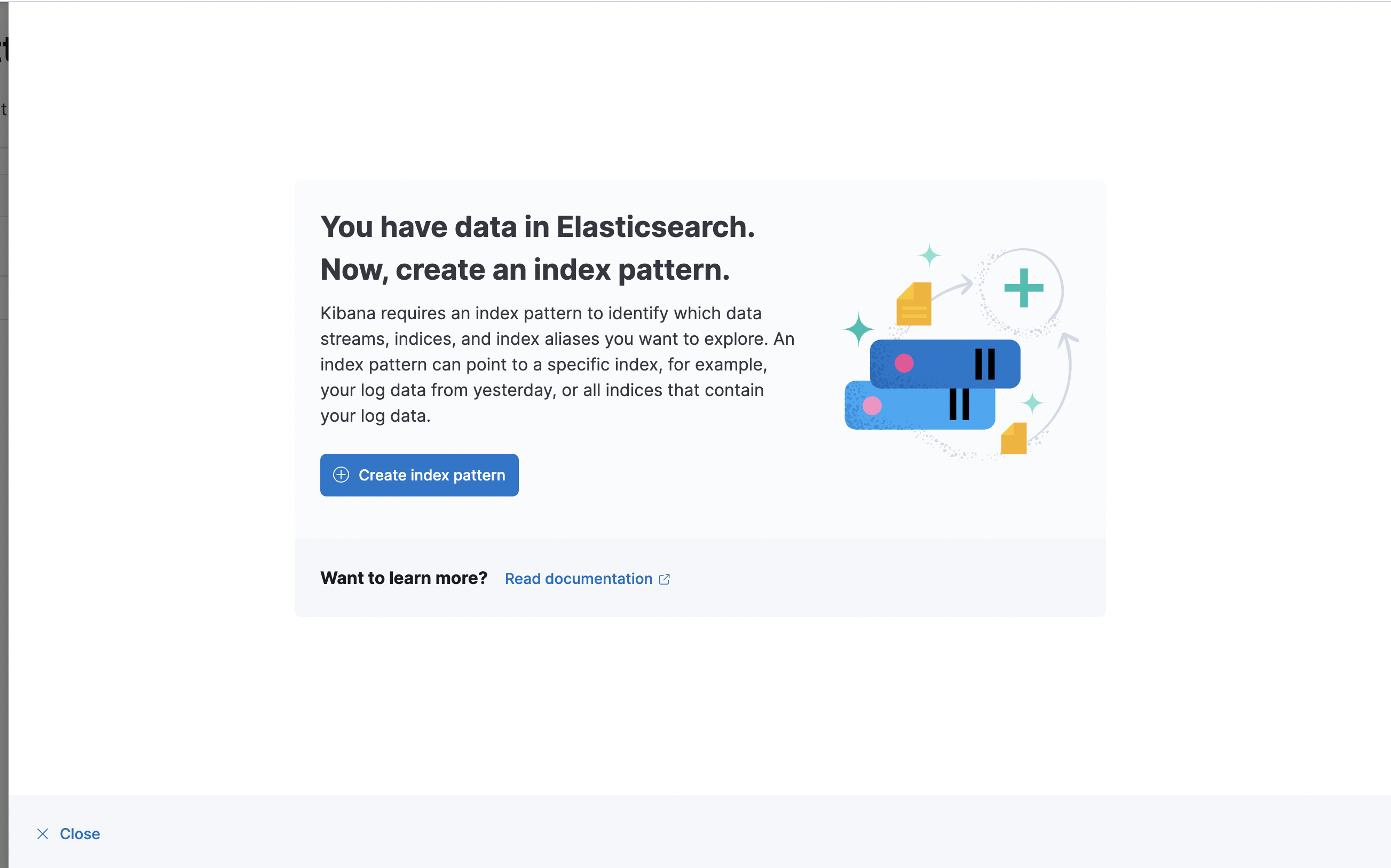
Create index in Elastic
Indexes within the Elasticsearch reference a collection of documents. These can be organised in any manner the user desires. The important note here is that if you want Kibana to search across multiple indexes they must all have the same prefix, i.e, myindex-2021 and myindex-2022.
Index creation can be done via the API by running:
curl -X PUT http://<YOUR ELASTIC HOST>:9200/<INDEX>
If you setup Elastic with a password for the default ’elastic’ user, you can pass that in the curl command shown below:
curl -X PUT -u elastic:<PASSWORD> http://<YOUR ELASTIC HOST>:9200/<INDEX>
If you’re using other tools like logstash, or filebeat make note to change their configs so they also send their logs to the correct index (in this case myindex). I plan on doing another post about configuring custom index names in filebeat. When it’s done I will link it here.
Setup the index pattern in Kibana
The following will continue to use myindex as your example index naming convention.
Now we’ll use the Kibana API to create an index pattern. We can do that with the following curl command:
curl -q -X POST -u elastic:<ELASTIC PASSWORD> "http://<KIBANA_SERVER>:5601/api/saved_objects/index-pattern/my-pattern"  -H 'kbn-xsrf: true' -H 'Content-Type: application/json' -d '
{
"attributes": {
   "title": "myindex*",
   "timeFieldName": "@timestamp"
}
}'
By default, Kibana accepts Elasticsearch authentication for the API. Omit -u elastic:<ELASTIC PASSWORD> if you do not use authentication for your Elasticsearch instance.
Now if you go to your Kibana instance (Analytics -> Discover) you should be able to search through any data located in any index where the name begins with myindex. Note how this is denoted with the wildcard * in the title field of the JSON in the curl command.
Things to note:
- In the curl command we must add headers
-H 'kbn-xsrf: true'per the Kibana API documentation - We specify a
timeFieldNameto be the@timestampof the log. This means Kibana will search by time the document was ingested into the Elasticsearch backend. You don’t actually needtimeFieldNamebut without it Kibana (amongst other things) will be unable to populate the top graph showing a volume of documents in your search:
- If your documents contain their own timestamp, you could replace
@timestampwith the relevant field. Using@timestamp, only references the time the log was ingested, not when it occurred so shouldn’t be considered as absolute truth for when the data in your log occured.
You can copy and paste the commands we’ve used into a bash script and make setup of future Elasticsearch instances easier too! :)
EOF
